


Quick Navigation
Quick File Transfer (QFT) a webtool to export quickly
your iwzip file to external website in 2 clicks !!!!
your iwzip file to external website in 2 clicks !!!!
Below you will find a nice webtool to export quickly the source files of your project.
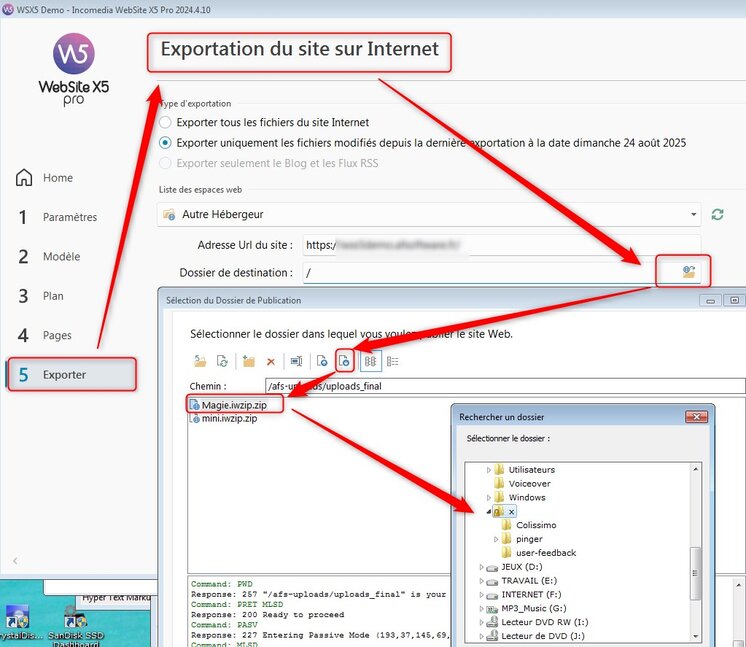
I have asked to Incomedia to add this option into the step 5 of the interface to secure the project files on an external place in case of crash or other thing of your hard disk and to have the BIG risk to loose the source files of your project.
Something like that into this picture !
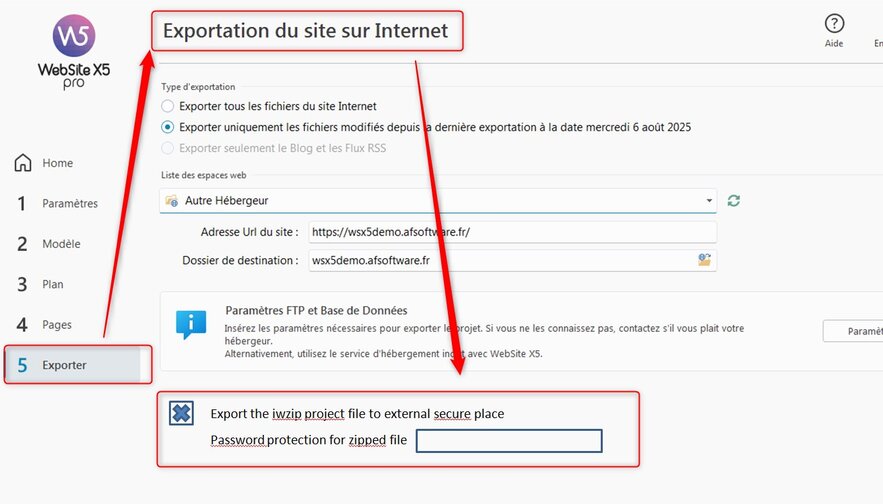
Today this option is not implemented... it' as pity. It should be nice
There are too many requests on the Help Center from users which have lost their project because the computer has crashed.
And the iwzip file was into a specific folder on the hardrive.... But hardrive is dead !!!!
Project source files too !!!
So I have developped a quick webtool to do that directly from your computer ... in 2 clicks
The concept is very light & easy
One HTML file installed on your website into a specific folder, is used locally into your browser to prepare the compression and password before the file sending
And a second PHP file is installed on your website into the same specific folder to receive compressed file.
The third file zip.min.js is the javascript library used for compression
For you, nothing to code into these 3 files...
It's ready to run !!!
The compressed file will be automatically sent to your remote directory choosen previously.
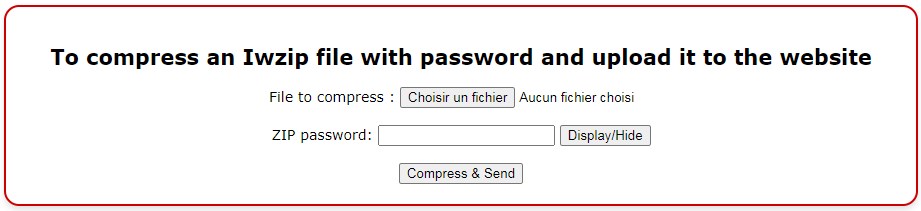
You choose your iwzip file (already generated previously into step 5) to zip it
You choose a password (very strong) to add it into the zipping process to secure your project file
That's all
Here the HTML page is:
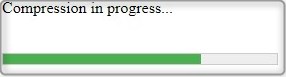
You will have a message during compression plus a progress bar
And the sending message after compression

And at the end a message is displayed in case of transfer done with success

And it's finish !!!!!
Now your iwzip file is into a secure place outside of your hardrive and fully secure by the password protection during zip compression.
Obviously we suggest to use a very strong password to secure your project file.... Don't forget it's your source files of your website.
How to install the tool
You need to unzip the received file... One file named qft.html is into HTML and other file named qtf.php into PHP.
The third file zip.min.js is the javascript libray for compression used by QFT
DO NOT RENAME THE QTF.PHP FILE
No needs to edit them.
You need to create on your remote host a remote directory. In our case we have spelled this one afs-uploads. Choice of name is free
The 3 files (qft.html & qtf.php & zip.min.js) needs to be sended to the root of your website into this specific directory called afs-uploads in our example.
For the remote directory you can choose other name, it's free.
That's all !!!
From your browser, click directly on the qft.html file and let's go !
The zipped iwzip file will be transferred into the same remote directory name choosen previously
Tip's
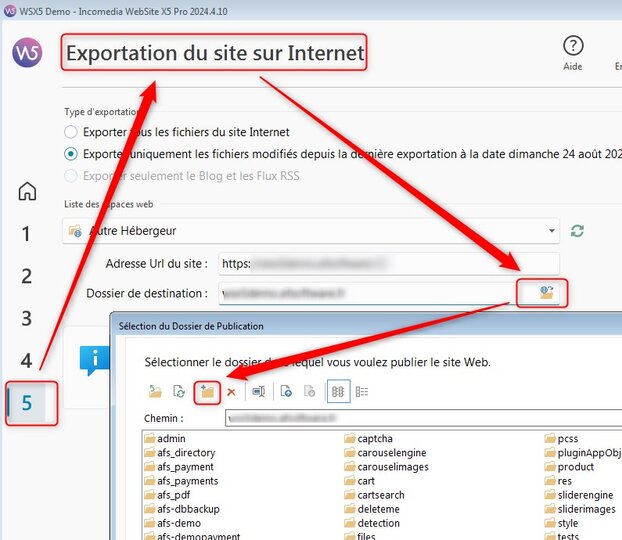
To create the remote directory of your choice, you can use the WSX5 interface on step 5 like below (or to use external FTP client)
After transfer we recommend to download the zipped file on your local computer to check is there is no error during unzipping process with the password.
Again you can use the WSX5 interface to upload the file or external FTP client.
IMPORTANT !!!
After a quick file transfer to your afs-uploads directory,
we recommend (and for sure for the first transfer) to download the file
to your computer and to test decompression with the password to check if there is no CRC errors during the transfer.
With CRC errors, your file should be broken in this case.
CRC Errors are independant of this tool...
Restrictions
There is one restriction with QFT! The maximum iwzip file size cannot be more than 4.2 Gb !
Why ?
Because the compression procedure into the html page is done into your computer memory before to be written on the local hard drive.
With big files (6Gb, 8Gb and more) you can have some out of memory issues and also your browser can freeze.
Compression process is very ressources consumer. So it's necessary here to put some limits to avoid any problem with the webtool.
Our javascript zip library authorizes to compress very big file + password. But not with big file more than 3 or 4 Gb before to have this memory issue.
A different Javascript zip library could be used to bypass this big files size restriction, but adding password is not supported !!!
So no real solution exist in our situation.
So we have decided to provide the solution with password and to limit the iwzip file size.
Don't worry, in case of choosing file above, you will have an alert.
Below,you can see our exported files during our testing
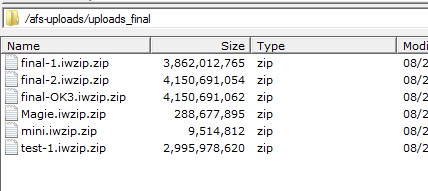
And your iwzip file about your project is into a secure place outside of your home or office....
So now impossible to loose a project files... Always possible to get the zipped file from the folder on your website.
If you are happy with this tool, you can do a litte donation by here
And your feedback by here
History
v2025.1 (08/2025)- First internal versionv2025.8 (09/2025)- First public releasev2025.9 (09/2025)- New FAQ on zipped file on the local hardisk- Style progress bar improved- Minors fixesv2025.10 (10/2025)- Add a contact us link on the page- Fix the good tool name at the bottom- Add FAQ about FTP binary transfert mode- Add display of time spent of uploadingv2025.11 (on the road)- Fix the time spent to be displayed with 2 decimals only- Add FAQ on how to reduce iwzip file size
FAQ's
QFT is a webtool and secure solution to avoid to loose all your source files by a computer crash.
Also the compression is already done on the local computer. So your source file is never published on the remote server.. Just when the zip file is created with the password... So at this time your zipped file is secure.
If you forget to save the iwzip file on an external device (usb key, external disk, network drive) your have a big risk to loose your source files and YOUR PROJECT definitively.
There are too many posts on the Help Center from users which have done a hardrive crash and ni iwzip file into a secure place.
Also to be very secure we provide QFT to add a password to add it to the file by the zipping processing plus passord added.
So we recommend to use a VERY STRONG password.
Like that, event if someone download your zipped file from the website, the file will be unreadable because the guys will not have the password.
Actually crack of very strong password is too complex
For technical information the passord is encrypted with AES 256.
Also the compression is already done on the local computer. So your source file is never published on the remote server.. Just when the zip file is created with the password... So at this time your zipped file is secure.
If you forget to save the iwzip file on an external device (usb key, external disk, network drive) your have a big risk to loose your source files and YOUR PROJECT definitively.
There are too many posts on the Help Center from users which have done a hardrive crash and ni iwzip file into a secure place.
Also to be very secure we provide QFT to add a password to add it to the file by the zipping processing plus passord added.
So we recommend to use a VERY STRONG password.
Like that, event if someone download your zipped file from the website, the file will be unreadable because the guys will not have the password.
Actually crack of very strong password is too complex
For technical information the passord is encrypted with AES 256.
Yes
QFT is totally free of charge and you can use it like you want on many computers in same time if you want.
There is no license restriction
The alone restriction is the possibility to transfer ONLY IWZIP files.
QFT is totally free of charge and you can use it like you want on many computers in same time if you want.
There is no license restriction
The alone restriction is the possibility to transfer ONLY IWZIP files.
The transfer is done by part just to secure it.
Generally if you transfer very big file in one piece, you can probably to have some timeout issues between the client and the destination.
So the mecanism to send the file by parts is a technique to force into the back, reconnection between client and server.
If you have some transfer issues, we recommend to try again. Many parameters can interfered during a transfer and specially with big files (> 3 / 4 Gb)
It is not an issue regarding the time of progression. In case of transfer issues we recommend to investigate around the Internet line, bandwith, other transfers in same, video streaming and so on .....
Do not forget also to check the avaibility of the remote host which is very important. If too many tasks are running on the hosted server ... (and probably to a provider)
It is not the same return if you are alone or not on the line to transfer 3 Gb or more !!!
Obviously the usage is recommended with an optical fiber because some iwizip files can be sometimes very big. So we do not support an Internet connection via Modem or ADSL :-)
QFT will not check that and we not support it
Generally if you transfer very big file in one piece, you can probably to have some timeout issues between the client and the destination.
So the mecanism to send the file by parts is a technique to force into the back, reconnection between client and server.
If you have some transfer issues, we recommend to try again. Many parameters can interfered during a transfer and specially with big files (> 3 / 4 Gb)
It is not an issue regarding the time of progression. In case of transfer issues we recommend to investigate around the Internet line, bandwith, other transfers in same, video streaming and so on .....
Do not forget also to check the avaibility of the remote host which is very important. If too many tasks are running on the hosted server ... (and probably to a provider)
It is not the same return if you are alone or not on the line to transfer 3 Gb or more !!!
Obviously the usage is recommended with an optical fiber because some iwizip files can be sometimes very big. So we do not support an Internet connection via Modem or ADSL :-)
QFT will not check that and we not support it
No.
QFT is configured to transfer ONLY iwzip file one by one. Multiple file selection is not provided too.
So you cannot choose other extension file.
But take care because the file selector is not an HTML tool but an option provides by your Operating System. So it's always possible to use the "All Files" into the selector option.
It's not an issue from QFT because again, the selector is a Window popup.
In any case the file will be compressed and protected by a password before transfer.
QFT is configured to transfer ONLY iwzip file one by one. Multiple file selection is not provided too.
So you cannot choose other extension file.
But take care because the file selector is not an HTML tool but an option provides by your Operating System. So it's always possible to use the "All Files" into the selector option.
It's not an issue from QFT because again, the selector is a Window popup.
In any case the file will be compressed and protected by a password before transfer.
Into the remote directory afs_upload, 2 other directories will be created by QFT
One is uploads_final which receives the final zipped file after transfer... Here all your zipped files are saved.
The second one is uploads_tmp is where the temporary files are written during the transfer. When the transfer is correctly done QFT will clear automatically this directory.
So normally there are no files.
If you find some files into this directory, so the transfer of the specified zipped file has been aborted and the cleaning has no be done. You can remove these files manually.
One is uploads_final which receives the final zipped file after transfer... Here all your zipped files are saved.
The second one is uploads_tmp is where the temporary files are written during the transfer. When the transfer is correctly done QFT will clear automatically this directory.
So normally there are no files.
If you find some files into this directory, so the transfer of the specified zipped file has been aborted and the cleaning has no be done. You can remove these files manually.
The answer is NO.
Take care about this situation. It is very simple to understand. The QFT webtool is using a php file installed on your remote server.
So if you try to launch QFT.html a second time you will broken the communication of the first instance by calling the same PHP file on the remote server.
Like QFT is running on the local computer into HTML, it is very difficult to block a second loading just with HTML/Javascript language. 100% guarantee is not.
So please take care...
And if it is done, retrying the first transfer !!
Take care about this situation. It is very simple to understand. The QFT webtool is using a php file installed on your remote server.
So if you try to launch QFT.html a second time you will broken the communication of the first instance by calling the same PHP file on the remote server.
Like QFT is running on the local computer into HTML, it is very difficult to block a second loading just with HTML/Javascript language. 100% guarantee is not.
So please take care...
And if it is done, retrying the first transfer !!
Effectively you cannot edit the code which is protected by AF Software, to avoid any modification from user.
It is the case for the html and php file too ...
By this way we avoid to have some issues based on code changed by user with no information on it.
If there are some modifications to do, ask for us.
It is the case for the html and php file too ...
By this way we avoid to have some issues based on code changed by user with no information on it.
If there are some modifications to do, ask for us.
We don't know really what is the file size limit !
It's depend of 2 main factors. RAM on your computer, CPU available before to start and also space disk.
But we have blocked the maximum of iwzip file size to 4.2 Gb.
During our testing we had 8Gb of RAM memory with 51% of CPU used. Free space disk was available.
So if you have less RAM memory / CPU may be this maximum size is too big for your environment.
Check the section 'restrictions' on this page to undertsand why we have put this limitation.
If you want really to do some tests with a file bigger than 4,2 Gb we can provide to you a keycode to unlock this restriction.
If you are interesting by this feature drop an email by here
It's depend of 2 main factors. RAM on your computer, CPU available before to start and also space disk.
But we have blocked the maximum of iwzip file size to 4.2 Gb.
During our testing we had 8Gb of RAM memory with 51% of CPU used. Free space disk was available.
So if you have less RAM memory / CPU may be this maximum size is too big for your environment.
Check the section 'restrictions' on this page to undertsand why we have put this limitation.
If you want really to do some tests with a file bigger than 4,2 Gb we can provide to you a keycode to unlock this restriction.
If you are interesting by this feature drop an email by here
Before to upload your iwzip file, you can try to reduce the iwzip file size by checking the backup directory into your project directory.
The backup directory is compressed into the iwzip file, so you can reduce it by deleting all or some bakup files into the backup directory before to create your iwzip.
The backup directory is compressed into the iwzip file, so you can reduce it by deleting all or some bakup files into the backup directory before to create your iwzip.
No.
Actually QFT works only into english language.
Actually QFT works only into english language.
We recommend to avoid to activate the screen saver or the hibernation mode during the transfer.
Hibernation obviously will provide a disconnection, and you will need to restart the transfer from the begginng.
The screen saver can reduce the speed of communication between your local computer and the remote server.
Hibernation obviously will provide a disconnection, and you will need to restart the transfer from the begginng.
The screen saver can reduce the speed of communication between your local computer and the remote server.
If you are into this situation we suggest to check the following before to contact us.
- Check space disk locally and remotely
- If you are using multiple tabs into your browser, can you try to restart just with one and QFT tab into the browser.
- If you are using Google Chrome, can you try to use Mozilla Firefox or other if you have it... And also try the reverse solution.
Check by a right click into the page to do an inspect command. A windows on the right /bottom will be displayed. Check the tab 'Console' to see if errors are displayed.
Also you can get some HTTP errors 403. These errors are always an issue from the remote server which has no more ressources to give an anser, and not from the client.
Generally to reload the page is OK, but here to reload the page is not good because in this case, your transfer will start again from scratch.
If you are thinking that is possible into your environment to transfer very big file more than 4,2 Gb, so we suggest to check the FAQ "What is the file size limit wit QFT ?" to see how to unlock the file size limitation and how to contact us.
- Check space disk locally and remotely
- If you are using multiple tabs into your browser, can you try to restart just with one and QFT tab into the browser.
- If you are using Google Chrome, can you try to use Mozilla Firefox or other if you have it... And also try the reverse solution.
Check by a right click into the page to do an inspect command. A windows on the right /bottom will be displayed. Check the tab 'Console' to see if errors are displayed.
Also you can get some HTTP errors 403. These errors are always an issue from the remote server which has no more ressources to give an anser, and not from the client.
Generally to reload the page is OK, but here to reload the page is not good because in this case, your transfer will start again from scratch.
If you are thinking that is possible into your environment to transfer very big file more than 4,2 Gb, so we suggest to check the FAQ "What is the file size limit wit QFT ?" to see how to unlock the file size limitation and how to contact us.
There is no "normal" speed to upload an iwzip file.
It's depend of the file size, bandwith, internet communication, remote host server ...etc
Just here for an example of a video of one big iwzip (4,2 Gb) transfer file with an internet connection through an optical fiber at 1Gb.
Look at the parts counter speed.
It's depend of the file size, bandwith, internet communication, remote host server ...etc
Just here for an example of a video of one big iwzip (4,2 Gb) transfer file with an internet connection through an optical fiber at 1Gb.
Look at the parts counter speed.
Like QFT is completely free there is no subscription or something like that which connect you and us.
In this case there is no specific settings to configure an update checking from our side.
The unique solution in this case is to go back to this page and to check the history section.
In this case there is no specific settings to configure an update checking from our side.
The unique solution in this case is to go back to this page and to check the history section.
When you load the page, generally you click on the password field to put your password.
At this time, password will be dispayed into clear text. To display it with stars just move the mouse out of the password field.
And it is the same to display the password. Move the mouse on the password field.
By this technology it is better than to have a button to click on it to display the password and to click on it again to hide the password.
With the a mouse over out, the password is quickly hidden.
At this time, password will be dispayed into clear text. To display it with stars just move the mouse out of the password field.
And it is the same to display the password. Move the mouse on the password field.
By this technology it is better than to have a button to click on it to display the password and to click on it again to hide the password.
With the a mouse over out, the password is quickly hidden.
To have a quick access to QFT, the best is to put a shorcut with the URL name on your desktop.
For that:
1. Right click on the desktop
- Choose New > Shortcut
2. Into the opening window:
- Write or paste the URL (by example : `https://www.example.com/afs_uploads/qft.html`)
- Click on Next
3. Give a name to your shortcut
- Give it a name (ex : "Quick File Transfer")
- Click to finish
(Optionnal) : To change the shorcut icon
1. Right click on the shorcut & Properties
2. Go into the tab Document Web (or Web Document in english)
3. Click on Change icon button
4. Choose an icon or explorer for other cutomized icon (`.ico`)

You can download here the qft.ico file
For that:
1. Right click on the desktop
- Choose New > Shortcut
2. Into the opening window:
- Write or paste the URL (by example : `https://www.example.com/afs_uploads/qft.html`)
- Click on Next
3. Give a name to your shortcut
- Give it a name (ex : "Quick File Transfer")
- Click to finish
(Optionnal) : To change the shorcut icon
1. Right click on the shorcut & Properties
2. Go into the tab Document Web (or Web Document in english)
3. Click on Change icon button
4. Choose an icon or explorer for other cutomized icon (`.ico`)
You can download here the qft.ico file
Here some informations about this error which ALWAYS generated by the remote server.
It is often a short remote server out of memory.
It's depend of the server performance in couple with your subscription done to the provider to have a remote host.
In conclusion, server performance is directly linked with the hosting solution. And all providers are different.
Here some PHP parameters which can be set to modify server performance. Check if you can do something
- Memory_limit
- Max_execution_time
- Max_input_time
With providers, a starter solution is less power than a premium solution !
Below a list of different 503 error messages:
- Status code HTTP Erreur 503
- HTTP 503
- HTTP Erreur 503
- HTTP Ereurr 503 The service is unavailable
- 503 Error
- HTTP Server Error 503
- Error 503 Service Unavailable
- HTTP /1.1 Service indisponible
- 503 Service non disponible
- 503 Service Unavailable Error
- 503 Service Temporarily Unavailable
- Service indisponible – DNS Failure
- Error 503 Maximum threads for service reached
The main fix is to reload the page. Not in our case because your transfer will start again from scratch.
Another solution maybe is to change your DNS IP on your local computer.
It is often a short remote server out of memory.
It's depend of the server performance in couple with your subscription done to the provider to have a remote host.
In conclusion, server performance is directly linked with the hosting solution. And all providers are different.
Here some PHP parameters which can be set to modify server performance. Check if you can do something
- Memory_limit
- Max_execution_time
- Max_input_time
With providers, a starter solution is less power than a premium solution !
Below a list of different 503 error messages:
- Status code HTTP Erreur 503
- HTTP 503
- HTTP Erreur 503
- HTTP Ereurr 503 The service is unavailable
- 503 Error
- HTTP Server Error 503
- Error 503 Service Unavailable
- HTTP /1.1 Service indisponible
- 503 Service non disponible
- 503 Service Unavailable Error
- 503 Service Temporarily Unavailable
- Service indisponible – DNS Failure
- Error 503 Maximum threads for service reached
The main fix is to reload the page. Not in our case because your transfer will start again from scratch.
Another solution maybe is to change your DNS IP on your local computer.
When the file has been uploaded on your website, we suggest to download the zipped file and to try to unzip it on your local hard drive to check is the unzipping has no error (like CRC errors during the FTP transfert .... )
Check the FAQ about this one.
We have found sometimes some errors during unzipping on local hard drive.
The file has some errors during the transfert. These errors can be generated during the download from the FTP to your local disk.
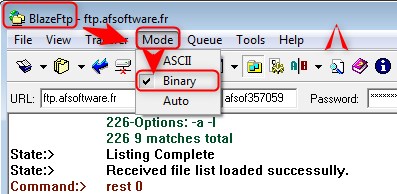
So we recommend to force the binary mode into your FTP client to avoid CRC errors generated by the FTP client.
Take care all FTP client have no configuration for that. And sometimes the Auto mode does not works properly.
Here the picture about this configuration with BlazeFTP client to force the binary mode.
Check the FAQ about this one.
We have found sometimes some errors during unzipping on local hard drive.
The file has some errors during the transfert. These errors can be generated during the download from the FTP to your local disk.
So we recommend to force the binary mode into your FTP client to avoid CRC errors generated by the FTP client.
Take care all FTP client have no configuration for that. And sometimes the Auto mode does not works properly.
Here the picture about this configuration with BlazeFTP client to force the binary mode.
To avoid an issue with the space disk where is written the zipped file before the transfer,iIt should be nice to delete it after transfer, said/ask many users.
But it is not necessary. The zip compression is fully done into memery until the transfer is starting.
So no file is present on your locally hard drive.
But it is not necessary. The zip compression is fully done into memery until the transfer is starting.
So no file is present on your locally hard drive.
In case of issue, the support will be done with the Best Effort.
So there is no guarantee to find and fix an issue.
And also we do not provide any delay.
Like we said : Done with Best Effort.
You can drop an email by here
Thank you for your understanding.
So there is no guarantee to find and fix an issue.
And also we do not provide any delay.
Like we said : Done with Best Effort.
You can drop an email by here
Thank you for your understanding.
Download
Quick Navigation